
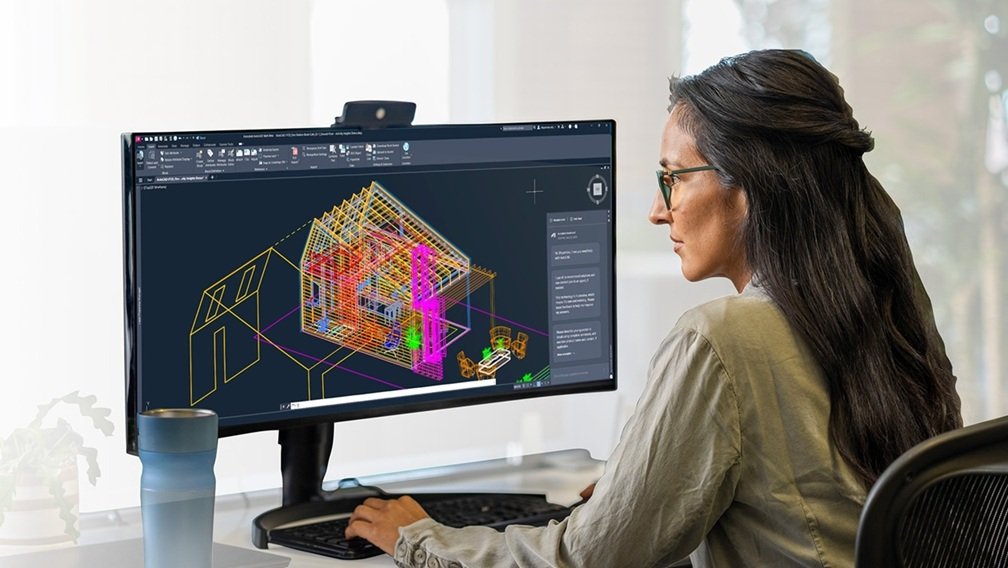

a workstation, keep project files on a VPN-accessed file share, and hope the user experience holds up. Once drawings get heavier complex geometry, point clouds, or large XREF stacks, this approach exposes the bottlenecks that cause AutoCAD instability on local machines, while introducing new latency and file-access risks.
Autodesk Support documentation ties many AutoCAD crashes and “fatal errors” to graphics drivers and system resource limits, not just application bugs. The pressure is rising because newer AutoCAD releases increase baseline hardware expectations.
This pushes older workstations closer to the edge in terms of RAM, GPU, and driver support, as noted in recent Autodesk system requirements.
This article examines why a traditional “RDP-first” model struggles with AutoCAD responsiveness, the architectural gaps causing lag or instability, and what to evaluate when shifting to GPU-backed cloud desktops or VDI-style delivery for CAD workloads.
Why “RDP to a workstation” becomes fragile for CAD
For AutoCAD, remote access is not simply about getting a desktop on-screen. It requires keeping graphics, storage, and compute behavior consistent under heavy model operations.
Traditional remote desktop usage commonly keeps one or more of these constraints in place:
- Compute stays tied to an endpoint-class workstation or laptop that can hit RAM or VRAM ceilings on complex drawings.
- Project files remain remote from compute, opened and saved across VPN links where network drops and latency can create data integrity problems.
- Graphics acceleration is inconsistent, especially when the environment lacks workstation-class GPU virtualization and supported drivers for professional applications.
The result shows up as cursor lag (“rubber banding”), degraded viewport interaction, and, in worse cases, application instability under load.
Lag starts with resource exhaustion, not the remote login tool
AutoCAD crashes commonly show up as “Fatal Errors” or “Unhandled Access Violations.” Research attributes these to exhaustion of system resources, especially RAM and video memory (VRAM), during complex work. When VRAM runs out, the system may fall back to slower system RAM, creating severe latency or even termination according to Autodesk.
This matters for remote access because a remote session does not remove the underlying limits of the machine doing the rendering. If the hosted workstation is undersized for the drawing, the user still experiences stalls and instability; they just happen “remotely.”
AutoCAD’s CPU behavior can make remote sessions feel worse
Puget Systems notes that AutoCAD is primarily single-threaded for tasks like geometry regeneration, making CPU frequency more important than core count for many common operations.
That CPU reality shapes the remote experience:
- If the remote machine is a generic, multi-core profile with lower clock speed, regen and related operations take longer.
- Longer regen times translate into more time where the user perceives the session as “lagging,” even if the network is stable.
The practical takeaway is not simply to “add cores.” Ideally, IT must match the workstation profile to AutoCAD’s specific behavior.
GPU and driver mismatches are a common remote failure point
For CAD, lag is often a symptom of a graphics stack mismatch rather than bandwidth issues alone.
NVIDIA points to RTX Virtual Workstation (vWS) as a way to deliver a virtual GPU profile with dedicated frame buffer allocation and native driver support for professional applications like AutoCAD. This contrasts with approaches such as vSGA or CPU-only rendering that can fail under load.
If a remote setup is built around “getting pixels to the user” but lacks workstation-class GPU profiles and supported GPUs, the session may connect successfully yet deliver poor viewport interaction once users enable hardware acceleration and push shaded views.
GPU compatibility also gates whether a given VDI design can support the API calls professional apps require. This makes verifying the NVIDIA vGPU supported GPU matrix essential at design time.
File access over VPN is where “remote access” turns into data risk
Many teams treat remote access as a UI problem, while keeping project storage where it has always lived.
AEC Magazine links crashes and “drawing file is not valid” errors to network latency when local workstations access large CAD files over VPN. When desktops and data sit in the same data center, file operations run at LAN speeds. This reduces corruption risk tied to network drops during open/save operations.
This is a key reason traditional “RDP to the office PC + VPN to the file share” gets brittle as drawings grow. The slowest link becomes the save/open path, not only the display path.
Display latency still matters, and CAD is unforgiving
Research consistently identifies CAD workflows as highly sensitive to round-trip latency, which directly contributes to cursor lag and rubber banding effects. Remote display protocols also introduce bandwidth overhead that must be factored into capacity planning, especially in vGPU-enabled environments where hardware encoding, frame buffering, and display pipeline optimization influence interactive performance. (source: NVIDIA vGPU documentation)
If the user experience requirement is “AutoCAD should feel local,” measuring only average bandwidth is insufficient. The environment must be designed around latency behavior and the relative placement of compute and data.
What to evaluate instead of “Does RDP connect?”
If remote AutoCAD is lagging, the evaluation should focus on where the bottleneck lives and whether the architecture removes it.
1) Put compute and CAD data in the same place
AEC Magazine’s core point is architectural: keeping the desktop and the file server/NAS in the same data center changes open/save behavior because it removes the VPN path from file I/O. For CAD teams, that often matters as much as GPU sizing.
2) Size CPU for frequency, not core count
Guidance from Puget Systems emphasizes AutoCAD’s single-threaded nature for regeneration tasks. Cloud-hosted desktops make it possible to select high-frequency instances aligned to that behavior.
3) Treat VRAM as a controllable resource
Instability and fatal errors are often tied to RAM/VRAM exhaustion on complex projects. A GPU-backed VDI model lets administrators assign vGPU VRAM profiles based on user needs and scale them as projects change, rather than waiting for a hardware refresh cycle. sources: Autodesk Support; NVIDIA.
4) Use workstation-class GPU virtualization with supported drivers
NVIDIA RTX vWS provides dedicated frame buffer allocation and professional app driver support, which connects directly to stability and feature compatibility for commercial apps like AutoCAD. Validate GPU support using NVIDIA’s vGPU compatibility matrix during design, not after deployment.
5) Plan for persistence when users are CAD power users
For engineers and architects, AEC Magazine highlights a shift toward persistent virtual desktops. This ensures users retain customizations, plotter configurations, and plugin settings. If the delivery model resets user state too aggressively, IT can end up trading endpoint management for profile-management overhead.
Where GPU-powered cloud desktops fit operationally
Research frames workstation virtualization and cloud desktops as a practical response to dispersed AEC teams and the difficulty of shipping and refreshing high-end workstations. AEC Magazine also highlights operational benefits like centralized patching of AutoCAD updates and moving from CapEx workstation purchases to a consumption model.
For teams evaluating providers, a well-architected Cloud VDI for AutoCAD should include NVIDIA-backed vGPU infrastructure and recognized security certifications such as ISO/IEC 27001, both critical considerations when centralizing CAD data for asset security and intellectual property protection.
Practical takeaways for reducing lag without guessing
The research points to a consistent pattern: remote AutoCAD performance is shaped more by where compute and data run and whether GPU/CPU resources match AutoCAD behavior than by the fact that a remote session exists.
If you are troubleshooting lag in a traditional RDP-style setup, the fastest way to narrow the cause is to check:
- Is the CAD workstation hitting RAM/VRAM limits on the specific projects that lag or crash?
- Are DWG open/save operations crossing a VPN link instead of staying on LAN-local storage near the desktop?
- Is the environment built on workstation-class GPU virtualization profiles with supported drivers for pro apps?
- Is the desktop sized for AutoCAD’s CPU frequency needs?
Two questions to pressure-test direction with your infrastructure team:
- Are you solving display access only, or are you relocating compute and CAD data to the same low-latency domain?
- Do your proposed virtual workstation profiles explicitly cover CPU frequency and dedicated VRAM, or are they generic office VDI shapes?